

CloudDock uses separate container images for different work scenarios. When you switch containers, you are selecting a new image and restarting your session into that environment.
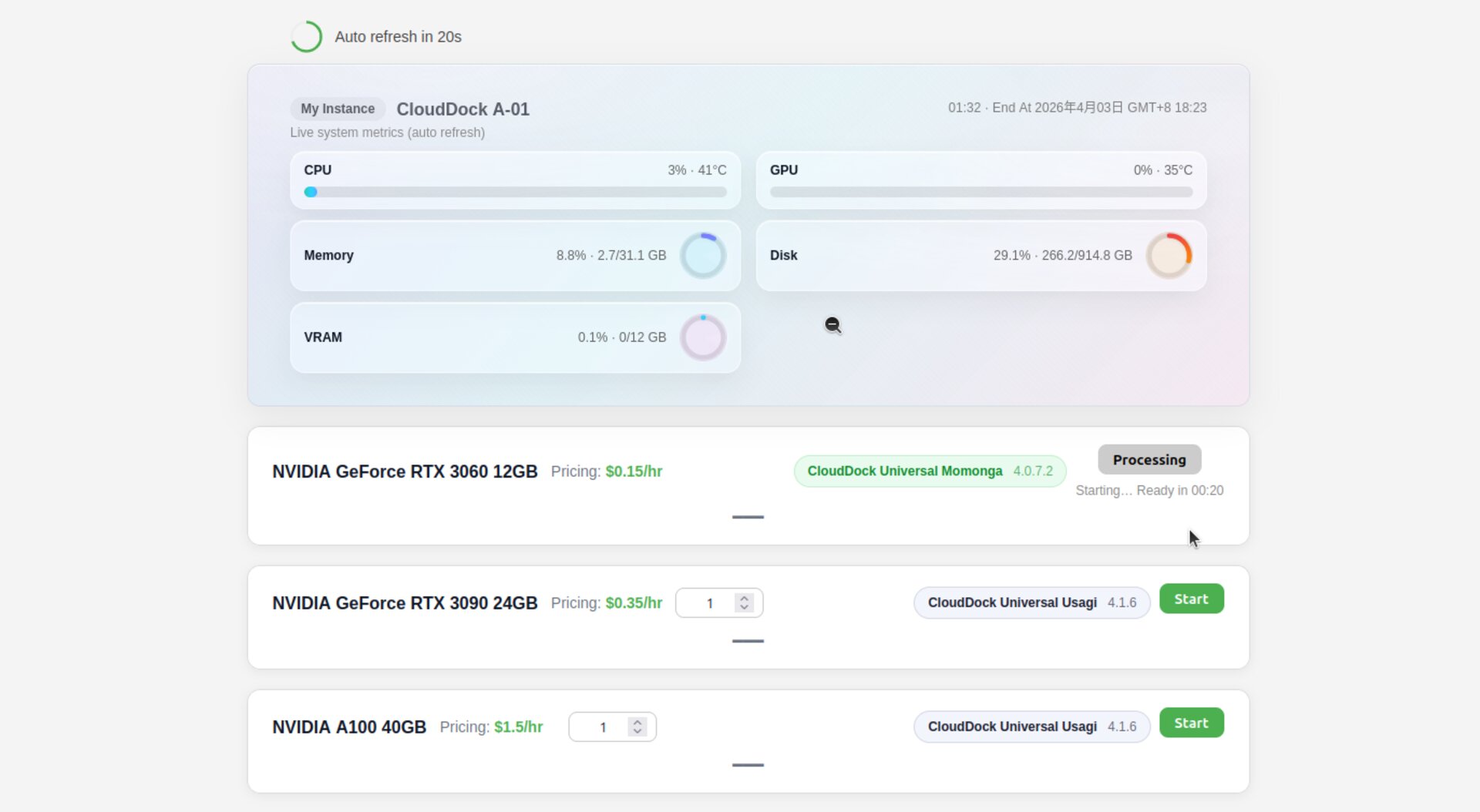
Go to your CloudDock Dashboard where you control your instance (Start / Continue / Restart).
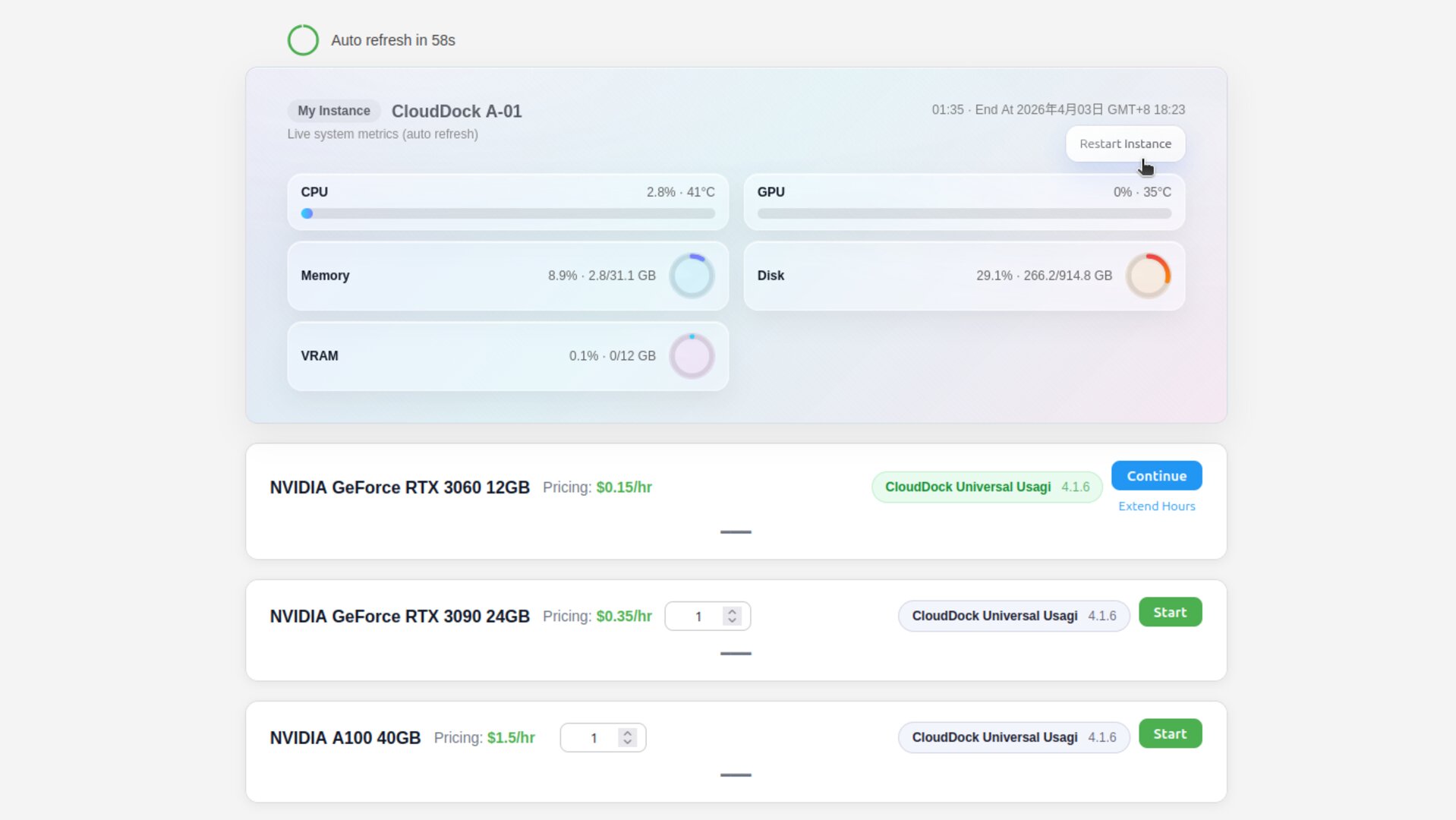
Click Restart Instance to begin the container switch flow.A list of available container images will appear.
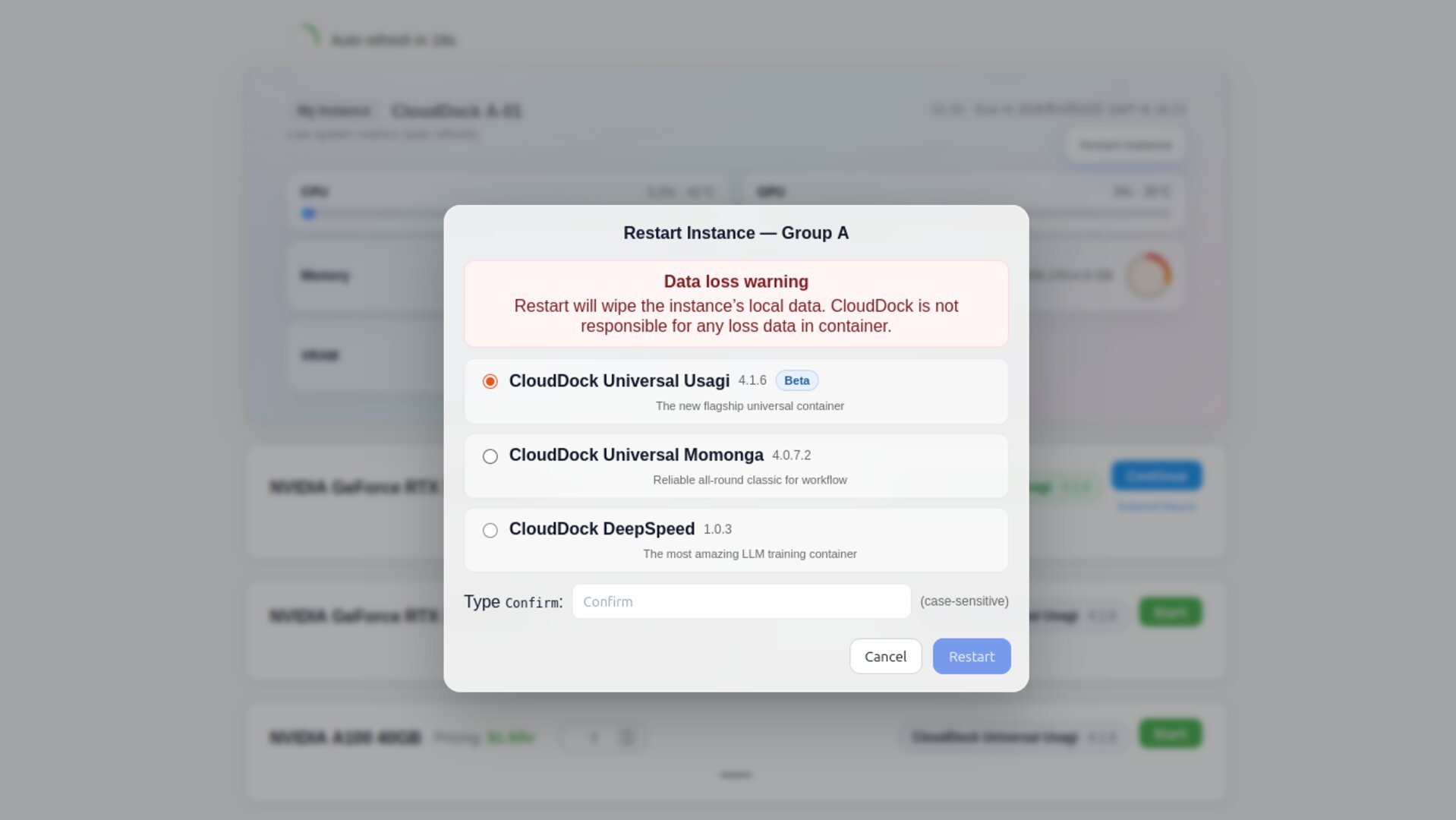
Choose the image that matches your work:Universal (SD + Jupyter) for daily SD workflow,or DeepSpeed for deep learning workloads.
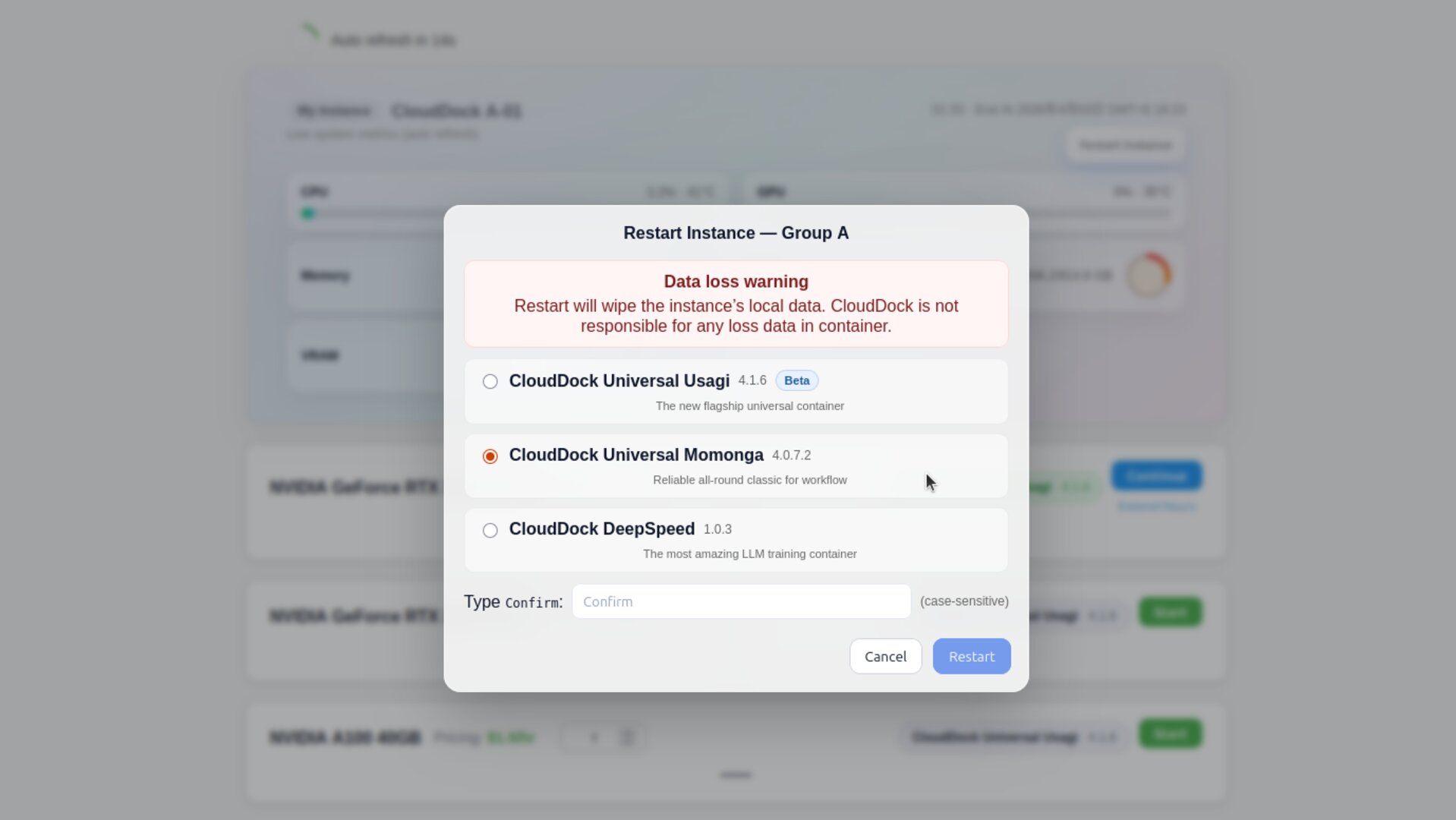
Type Confirm (case-sensitive) in the confirmation box, then click Confirm to proceed.This step prevents accidental restarts.
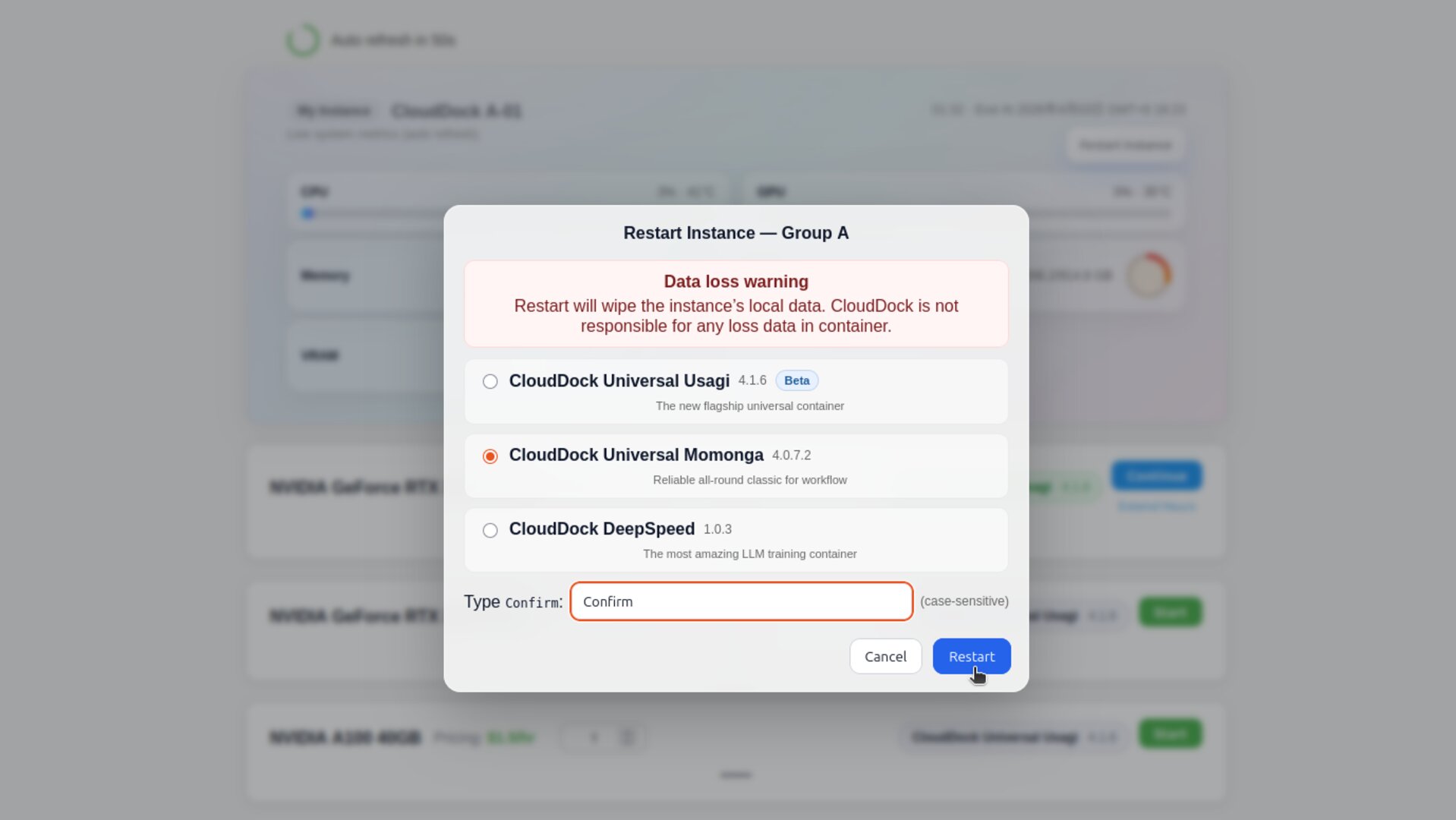
CloudDock will start the selected container image for your session.Once ready, click Continue to enter the new environment.
You're now ready to work in the right container for your task.